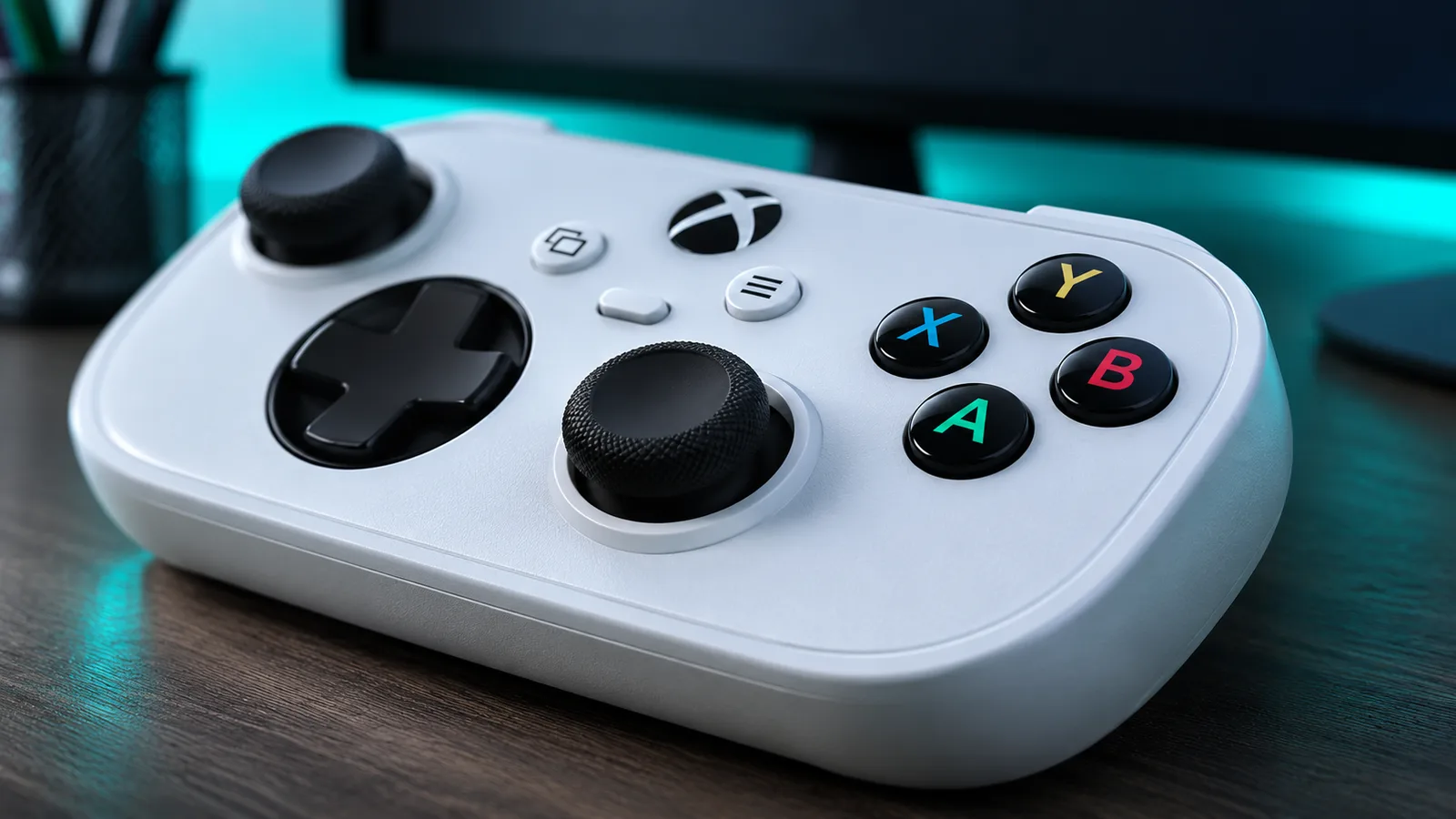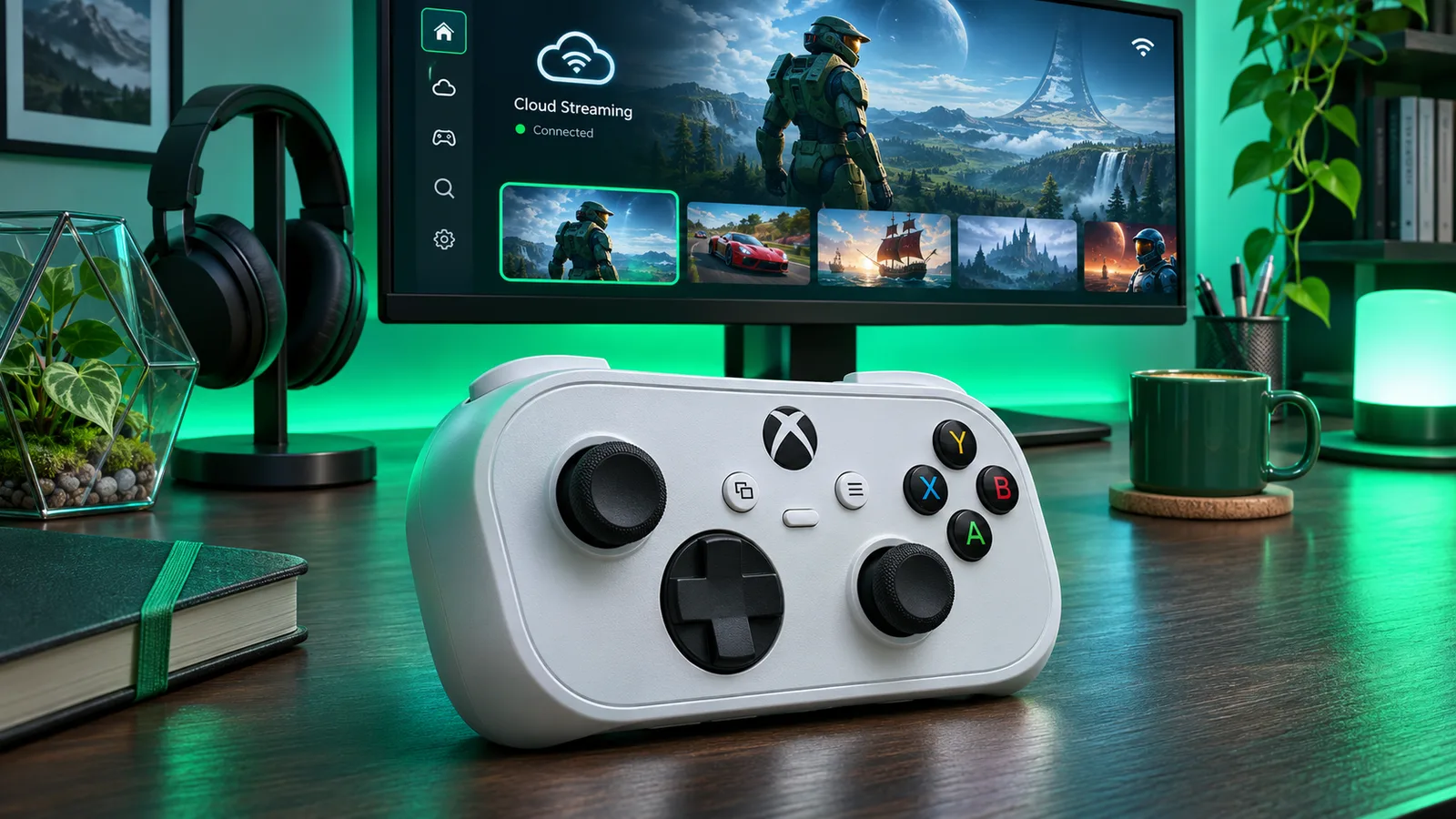
Xbox Cloud Gaming is rolling out two previews. One lets phones act as controllers on supported smart TVs. The other, Cloud Connect, lets the Xbox Nano Controller connect over Wi-Fi in the US to reduce latency. Availability, devices and games may be limited.
Xbox Cloud Gaming is rolling out two previews: using a phone as a controller on supported smart TVs, and, in the US, cloud connect with the new Xbox Nano Controller. Both previews are still being tested, and availability and supported games or devices may be limited.
Cloud Connect for the Nano Controller
Xbox revealed Cloud Connect, a direct Wi-Fi connection feature for the Xbox Nano Controller, which is rolling out in preview. The feature lets users connect the controller to a Wi-Fi network instead of Bluetooth when using Xbox Cloud Gaming, reducing input latency compared with Bluetooth. Users in the US can connect the controller directly to Xbox Cloud Gaming over Wi-Fi. Xbox also said some games will have custom-tailored touch layouts.
Setup requires configuring the Nano Controller to a home Wi-Fi network using the Xbox beta app on Android or the Xbox Accessories app on PC. PC setup requires enrollment in the Xbox Insider program. Xbox describes Cloud Connect as an early test that won't work with every cloud gaming experience yet. For now, it works on supported smart TVs and the web.
The feature is similar to the discontinued Stadia Controller's ability to connect to a Wi-Fi network when playing Stadia games. When Google shut down Stadia, it released a tool to enable Bluetooth on that controller.
Phone as a controller
Xbox announced a global preview that lets iOS or Android smartphones serve as a virtual gamepad for Xbox Cloud Gaming on supported smart TVs where the service is live. The preview is rolling out on supported TVs in countries where Xbox Cloud Gaming is supported. It works with a supported Android or iOS phone on a supported smart TV. The controller loads entirely in the phone's web browser, so no dedicated app download is needed.
To try it, users open the Xbox Cloud Gaming app on a supported smart TV, go to Settings > Account and turn on Preview Features. They are then prompted to link their phone when launching a game with no physical controller connected. Microsoft said both controller options are in preview, and availability and supported devices and games may be limited.